PWA for Blueprint
Product information
Release v1.0.0 (Updated )
Reviews
1 von 5 Sternen
1 out of 5 stars · 1 reviews · 6 purchases
A simple Blueprint extension that enables Progressive Web App (PWA) functionality for your Pterodactyl Panel, making it installable on desktops and mobile devices.
€5,00
Release history

Description

PWA for Blueprint
Install Your Panel as a Native App on Desktop & Mobile!
🚀 About This Extension
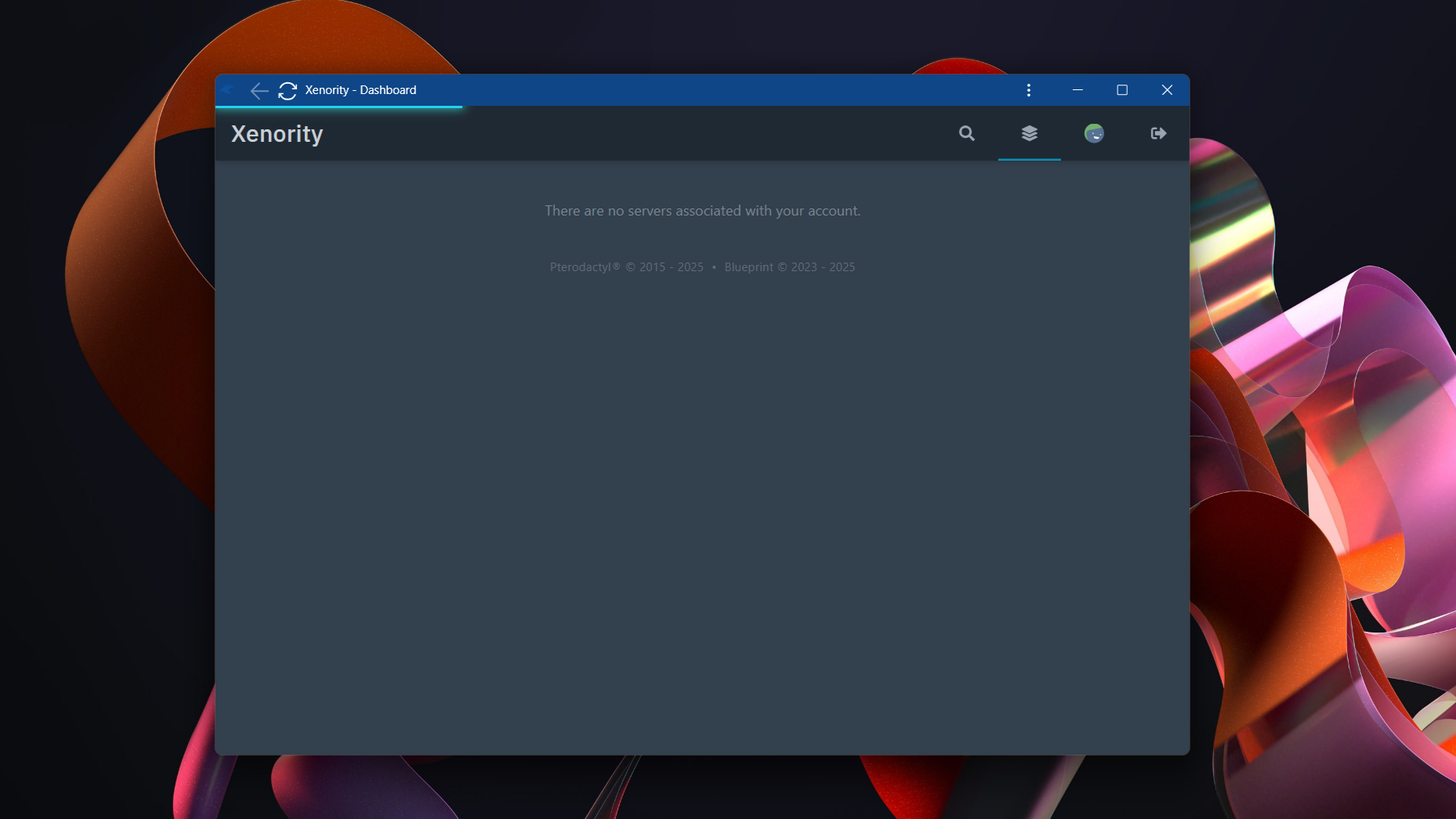
Transform your Pterodactyl Panel experience with PWA for Blueprint. This powerful tool allows you and your users to install the panel as a Progressive Web App (PWA) on any supported desktop or mobile device. Enjoy a seamless, app-like experience with faster access from your desktop or home screen.
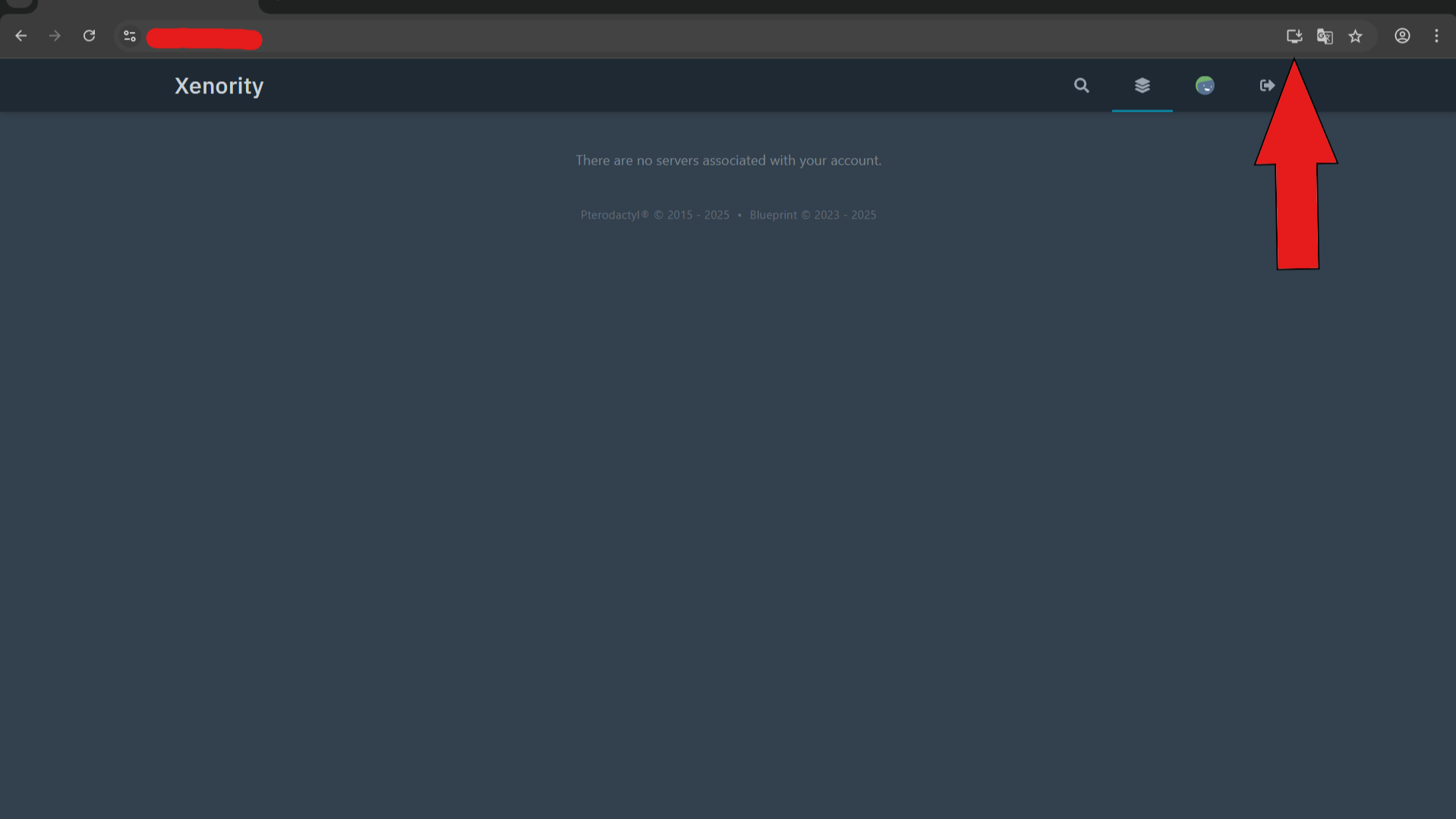
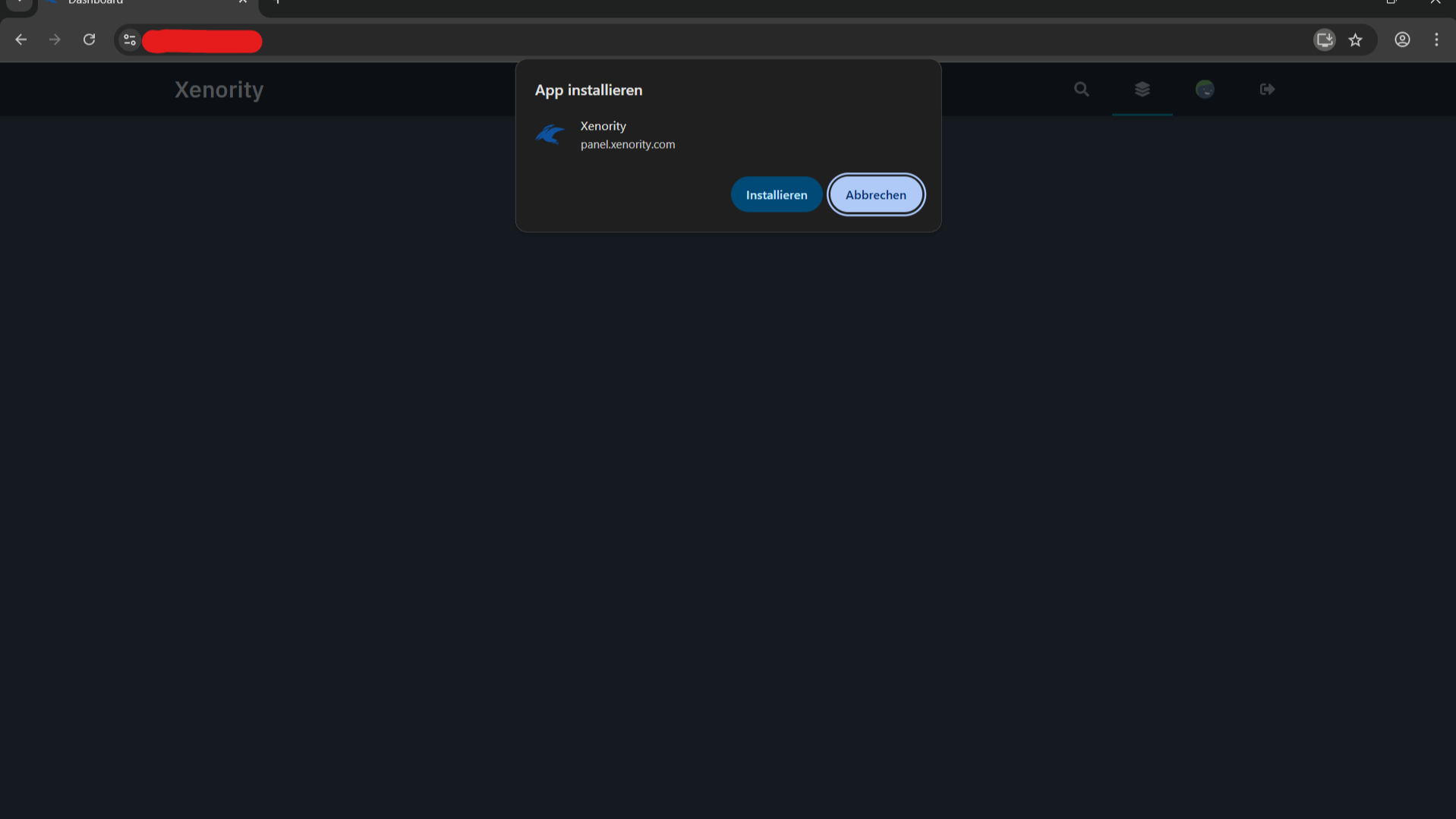
Once installed, a button will appear in your browser's address bar, allowing you to add the panel directly to your desktop, start menu, or mobile home screen.
✨ Key Features
- App-Like Experience: Launch the panel from your desktop or home screen, just like a native application.
- Easy Configuration: A simple admin settings page to define the PWA's
start_urlanddisplaymode (e.g., Standalone, Fullscreen).
⚙️ Installation
> Prerequisite: This extension requires the Blueprint Framework to be installed and running on your Pterodactyl Panel.
Step-by-Step Guide
-
Download & Unzip
- Download the latest
pwa.zipfile from this page and unzip the archive on your computer.
- Download the latest
-
Upload to Your Panel
- Inside the unzipped folder, you will find the
pwa.blueprintfile. - Upload this
pwa.blueprintfile to the root directory of your Pterodactyl Panel (e.g.,/var/www/pterodactyl).
- Inside the unzipped folder, you will find the
-
Run the Installation Command
- Navigate to your Pterodactyl directory in your terminal and execute the following command:
bash blueprint -i pwa.blueprint
- Navigate to your Pterodactyl directory in your terminal and execute the following command:
-
Configure & Generate
- Navigate to the Admin area of your panel, find "PWA for Blueprint" in the extensions list, and configure your settings.
- Click "Save & Generate Files" to create the necessary PWA files for the first time.
-
Done!
- Reload your Pterodactyl Panel in your browser. A hard refresh (
Ctrl+F5orCmd+Shift+R) is recommended. The install prompt should now appear in your browser's address bar.
- Reload your Pterodactyl Panel in your browser. A hard refresh (
💡 How to "Install" the PWA
After the extension is configured, visit your panel's login page. In your browser's address bar, you will see an icon to "Install" the app. On mobile, this option is typically found in the browser menu under "Add to Home Screen".